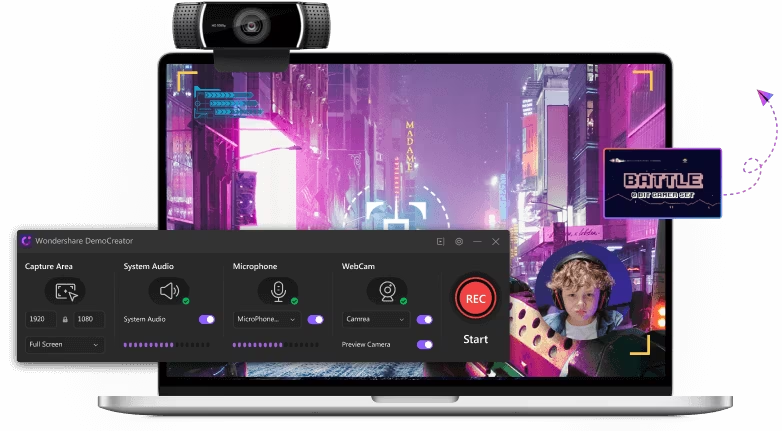
The best tools to serve as an audio recorder for Mac in 2026 are Vomo.ai, QuickTime Player, Audio Hijack, Voice Memos, and Audacity. While native macOS apps like QuickTime and Voice Memos offer basic functionality for quick voice notes, advanced users and professionals are turning to AI-powered solutions like Vomo.ai. Vomo not only captures high-fidelity audio but simultaneously transcribes and summarizes recordings, effectively bridging the gap between a simple sound recorder and a comprehensive productivity assistant. For those needing complex system audio routing, Audio Hijack remains the industry standard, while Audacity continues to serve as the go-to open-source editor.
The Evolution of Recording Audio on macOS
For years, Mac users faced a distinct challenge: capturing high-quality audio was easy, but managing it was hard. The hardware on devices like the MacBook Pro is exceptional, boasting studio-quality microphones. However, the software landscape has often been fragmented. You needed one app to record your voice, another to capture internal system sound (what is playing through your speakers), and a third to edit or transcribe that content.
In 2026, the paradigm has shifted. We are moving away from single-purpose “dumb” recorders toward intelligent platforms. Modern creators, students, and professionals demand tools that do more than just generate a WAV file—they want actionable data. This brings us to the most versatile tools available today.
Top 5 Audio Recording Software for Mac Reviewed
We have tested the leading software to help you choose the right tool for your specific workflow, whether you are recording a podcast, a Zoom meeting, or a lecture.
1. Vomo.ai: The Intelligent Choice for Modern Productivity
Vomo.ai sits at the top of our list because it fundamentally reimagines what a recorder should do. It is not just about capturing sound waves; it is about capturing meaning. Designed to work seamlessly via web browsers on macOS (and Apple Silicon optimized workflows), Vomo is the ideal solution for users who want to record meetings or lectures and immediately have a text version of the content.
Deep Technical Insight: How Vomo.ai Processes Sound Unlike traditional recorders that simply write binary audio data to your hard drive, Vomo employs a sophisticated AI-first architecture. When you initiate a recording:
- Signal Pre-processing: The engine applies real-time noise suppression filters to isolate human speech from ambient background noise, ensuring the input is optimized for analysis.
- Neural Network Transcription: The audio stream is processed through advanced Large Language Models (LLMs), such as OpenAI’s Whisper series. Vomo’s implementation uses deep learning to map phonemes to words with context awareness, meaning it can distinguish between homophones (e.g., “hear” vs. “here”) based on the sentence structure.
- Speaker Diarization: Vomo utilizes spectral clustering algorithms to identify unique voice signatures. This allows the software to automatically label different speakers (e.g., Speaker A, Speaker B) in the final transcript, a feature native Mac tools lack completely.
- Semantic Summarization: Finally, a generative AI layer scans the transcribed text to extract key insights, action items, and summaries, transforming a raw 50MB audio file into a concise knowledge document.
2. QuickTime Player: The Built-In Native Solution
Every Mac comes with QuickTime Player installed. It is the quickest way to verify your microphone is working or to grab a fast sound bite.
- Pros: completely free, pre-installed, and extremely lightweight.
- Cons: It is bare-bones. Recording internal system audio (like a YouTube video playing in Safari) requires setting up complex virtual drivers like BlackHole, which can be technical for general users.
3. Audio Hijack: The Pro’s System Audio Tool
If your goal is to record a Skype call on one channel and your microphone on another, Audio Hijack by Rogue Amoeba is the gold standard.
- Pros: It offers a visual “grid” where you can route audio blocks. You can capture audio from specific applications (e.g., record only Spotify) without capturing system alerts.
- Cons: It comes with a premium price tag and has a steep learning curve. It is strictly a recorder/router and offers no transcription features.
4. Voice Memos: The Apple Ecosystem Standard
For users deep in the Apple ecosystem, the Voice Memos app provides unmatched synchronization.
- Pros: Record a thought on your Mac, and it instantly appears on your iPhone and iPad via iCloud. The interface is clean and familiar.
- Cons: The audio quality is often compressed (M4A), and organization features are limited. It is not suitable for professional production or long-form content management.
5. Audacity: The Open-Source Workhorse
Audacity remains a favorite for podcasters who need a free multi-track recorder.
- Pros: It allows you to edit the waveform down to the millisecond. You can cut, splice, and apply effects like normalization or EQ.
- Cons: The user interface looks dated (reminiscent of Windows 95), and it uses destructive editing, meaning if you save over a file, you can’t easily undo changes later.
Essential Features to Look for in Mac Recording Tools
When selecting your software, consider these critical factors:
- Source Flexibility: Can the tool record both your external USB microphone and the audio playing from a video conference simultaneously?
- File Formats: Does it support high-quality exports like WAV or FLAC, or does it lock you into compressed MP3s?
- Cloud Integration: In 2026, local-only recordings are risky. Look for tools that back up your data to the cloud automatically.
- Post-Production Speed: How fast can you go from “stop recording” to “shareable content”? This is where AI tools vastly outperform traditional editors.
Step-by-Step: How to Record and Transcribe on Mac with Vomo
For users who want to leverage the power of an AI-driven audio recorder for Mac, the process is streamlined to minimize technical friction.
Step 1: Access the Vomo Interface Launch Vomo directly through your preferred browser on your Mac. The platform is optimized for Safari and Chrome on macOS, ensuring low latency.
Step 2: Configure Your Input Before hitting the red button, ensure your input source is correct. You can select your MacBook Pro’s internal microphone or an external podcaster mic. Vomo’s interface provides a visual sound meter—speak a few words and ensure the bars are moving in the green zone to confirm audio levels are healthy.
Step 3: Capture and Process Click the “Record” button to begin. As you speak or conduct your meeting, Vomo captures the audio securely. Once you press “Stop,” the file is not just saved; it is immediately processed.
Step 4: Unlock the Data Within moments, your recording is transformed. You can view the full transcript, playback the audio at variable speeds (1.5x or 2x) to review quickly, and use the “Ask AI” sidebar to generate a summary or draft an email based on the recording content.
Internal Audio vs. Microphone Recording: Understanding the Difference
A common point of confusion for Mac users is the difference between recording “inputs” and “outputs.”
- Microphone Recording (Input): This captures sound waves from the physical world—your voice, acoustic instruments, or room ambience. All five tools listed above handle this well.
- System Audio (Output): This captures what the Mac is “thinking”—sound from a game, a browser video, or a Zoom call partner. macOS has strict security sandboxing that makes this difficult for native apps like QuickTime. To capture this, you typically need specialized drivers or a tool like Vomo that allows you to upload recorded files or integrates with meeting platforms directly to capture the stream at the source.
Capturing and Utilizing Audio Efficiently on macOS
The days of treating audio recordings as static, dead files are over. In the modern Mac workflow, a recording is just the first step in creating value. While legacy tools like QuickTime and Audacity still have their place for specific tasks, the future belongs to integrated platforms.
By choosing a smart recording solution like Vomo.ai, you are doing more than just archiving sound; you are creating a searchable, actionable database of your conversations and ideas. Whether you are a student looking to ace exams or a professional managing client calls, upgrading your audio recorder to an AI-enabled assistant is the single most effective way to boost your productivity in 2026.