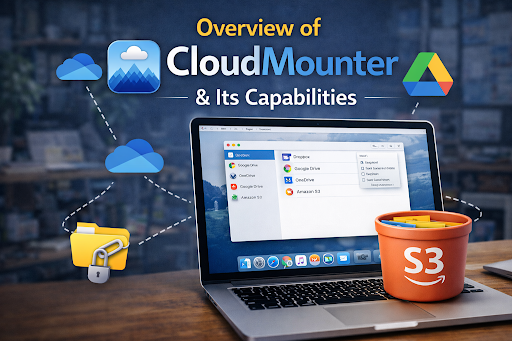
CloudMounter is a desktop tool that lets you connect cloud storage to your computer like a normal folder. Instead of opening a browser or many apps, you see your cloud files right inside your system. You can open, move, rename, or delete files just like you do with local data.
This is useful for people who work with files daily and want everything in one place. CloudMounter focuses on simplicity, security, and direct access without confusing steps.
What is CloudMounter?
CloudMounter is software that mounts cloud storage as local drives on your computer. “Mounting” means the cloud appears as a real disk or folder inside your system. Once mounted, you work with files the same way you work with files on your hard drive.
You do not need to sync full folders or wait for downloads. Files open when you need them, which helps save space and keeps your system clean.
Why cloud drive mounting matters
Cloud drive mounting removes extra steps from daily work. You do not need to open multiple apps, log in again and again, or download files before editing. Everything stays connected in the background.
This is especially helpful for beginners who want a simple way to manage cloud files without learning technical settings.
Supported Platforms
CloudMounter supports major desktop systems and is built to work smoothly on each one.
macOS Support
On macOS, CloudMounter works directly with Finder. Cloud drives appear like normal folders, so there is no learning curve. You can drag, drop, and organize files easily.
Many users rely on it to add one drive to finder without using extra tools or browser access. This keeps the workflow clean and familiar.
Windows Support
On Windows, cloud storage shows up as a drive letter. You can open it from File Explorer just like a USB drive or hard disk. Basic actions like copy, paste, and rename work normally.
This makes it easy for beginners who are already comfortable with Windows folders.
Linux and Future Platform Plans
Linux support is limited right now, but development plans include broader compatibility. The goal is to offer the same simple experience across more systems in the future.
Core Features of CloudMounter
CloudMounter focuses on daily file access, not complex syncing rules. Below are its most useful features.
Mount Cloud Storage as Local Drives
You can mount popular cloud services as local disks. Once mounted, they behave like normal folders on your computer.
Supported storage includes:
- Google Drive
- Dropbox
- OneDrive
- Amazon S3
This setup removes the need to open separate apps or web dashboards.
Support for Protocol-Based Servers
CloudMounter also supports server connections using standard file protocols.
These include:
- FTP
- SFTP
- WebDAV
This is helpful if you work with remote servers and want to manage them the same way as cloud drives.
Work Offline Capability
CloudMounter allows limited offline work using cached files. If a file was opened before, you can edit it without an active connection. Changes sync once the connection returns.
This is useful when internet access is slow or unstable.
Manage Multiple Accounts in One Place
You can connect many cloud accounts at the same time. There is no hard limit, which makes CloudMounter a strong app to manage multiple cloud accounts in one interface.
Each account stays separate, but all are accessible from one location.
Security and Encryption
Security is one of CloudMounter’s strongest areas. It protects data both during access and storage.
AES-256 Encryption for Cloud Files
CloudMounter uses AES-256 encryption, which is a strong and trusted security standard. Files are encrypted before they leave your computer.
This protects sensitive data from unauthorized access.
Secure Authentication and Proxy Support
The app supports secure login methods and works with proxy settings. This is useful for users in restricted networks or offices with special security rules.
Your login details are not stored in plain text.
User Experience and Interface
CloudMounter is designed for beginners who want things to “just work.”
Easy Setup & Menu Bar / Finder Integration
Setup is simple and guided. You connect an account, choose settings, and the drive appears automatically.
On macOS, menu bar access and Finder integration make switching accounts quick and easy.
Unified Access Without Multiple Apps
Instead of opening different apps for each cloud, everything appears in one place. This reduces confusion and saves time, especially for new users.
File Management Capabilities
Once mounted, CloudMounter behaves like local storage.
Direct File Operations
You can:
- Open files
- Move folders
- Rename items
- Delete content
All actions happen directly on the cloud.
Work with Files As If Local
Programs like editors or media players can open files directly from the mounted drive. There is no need to download files first.
This keeps storage usage low and works faster.
Handling Large Files & Cache Considerations
Large files stream as needed instead of fully downloading. Cache size can be controlled to avoid filling up disk space.
This balance helps maintain system performance.
Performance and Limitations
CloudMounter performs well for daily tasks, but it has some limits.
Speed and Reliability Considerations
Speed depends on internet quality and file size. Small files open quickly, while very large files may take time.
Stable internet gives the best experience.
Sync vs Mounting Differences
Mounting does not keep full copies of files on your device. Syncing tools download everything, while mounting only accesses files when needed.
This saves space but means offline access is limited.
Known Issues & Community Feedback
Some users report slower access when handling many large files at once. Others mention learning the difference between cached and online files.
Overall feedback highlights simplicity and security as key strengths.
Comparison with Similar Tools
CloudMounter competes with other cloud mounting tools in the market.
CloudMounter vs ExpanDrive / Others
Compared to similar apps, CloudMounter focuses more on security and native system integration. It avoids clutter and keeps settings simple.
Other tools may offer more advanced syncing, but they often feel complex for beginners.
When to Choose CloudMounter
Choose CloudMounter if you want:
- Simple cloud access
- Strong encryption
- No full-folder syncing
- Clean system integration
It works best for users who value ease and safety.
Conclusion
CloudMounter makes cloud storage feel like part of your computer. You do not need special skills or technical knowledge to use it. Files appear where you expect them, and security runs quietly in the background.
For beginners who want simple, secure, and direct cloud access, CloudMounter is a practical choice.
FAQs
What does CloudMounter do?
CloudMounter connects cloud storage to your computer as local drives. You can manage files without using a browser.
Is CloudMounter safe to use?
Yes, it uses strong encryption and secure authentication to protect your data.
Can CloudMounter work with OneDrive on Mac?
Yes, it allows OneDrive to appear inside Finder so files can be accessed like local folders.
Does CloudMounter store files locally?
Files are accessed online. Only temporary cache files are stored for performance or offline access.
Is CloudMounter free or paid?
CloudMounter offers limited free access, with full features available in the paid version.